Skip to content
JScheper.com
JScheper.com

BizApps, Powerplatform and AI

  • Home
  • Blog
  • Contact
JScheper.com

BizApps, Powerplatform and AI

Customize the Opportunity close form

How to customize the opportunity close form

Posted on August 7, 2024August 7, 2024 By Jeroen Scheper

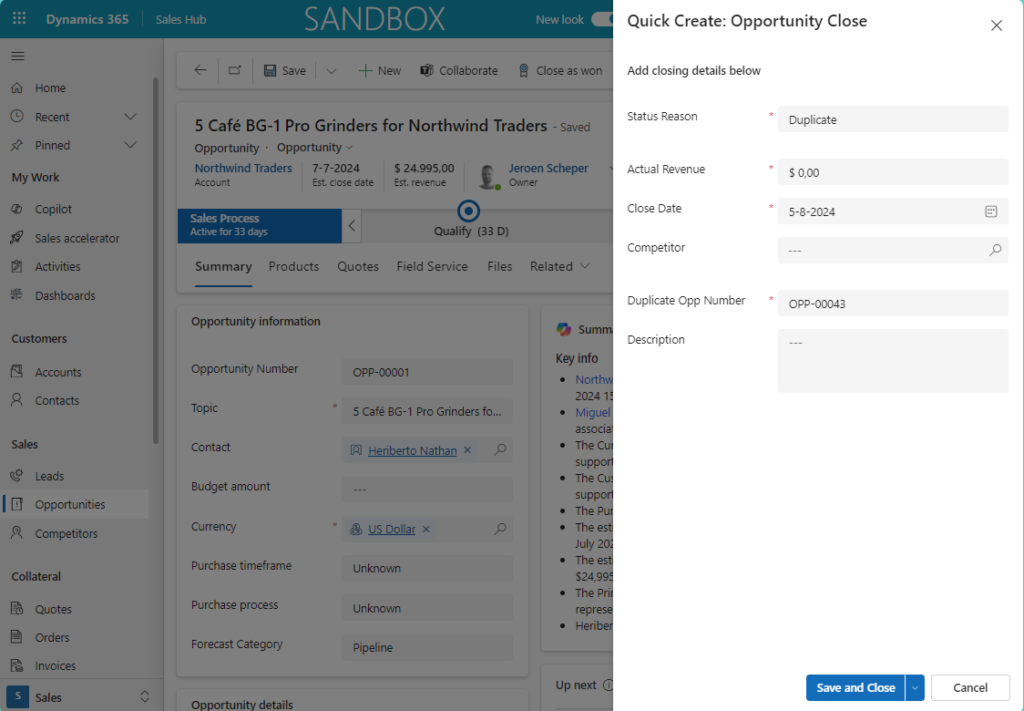
Have you ever had the need to customize the opportunity closuring experience? When managing the opportunities in the current sales process, you will probably recognize the popup below. This is triggered when you mark your opportunity Close as won or Close as lost from the ribbon. It is possible to customize the opportunity close form experience via some simple configuration steps.
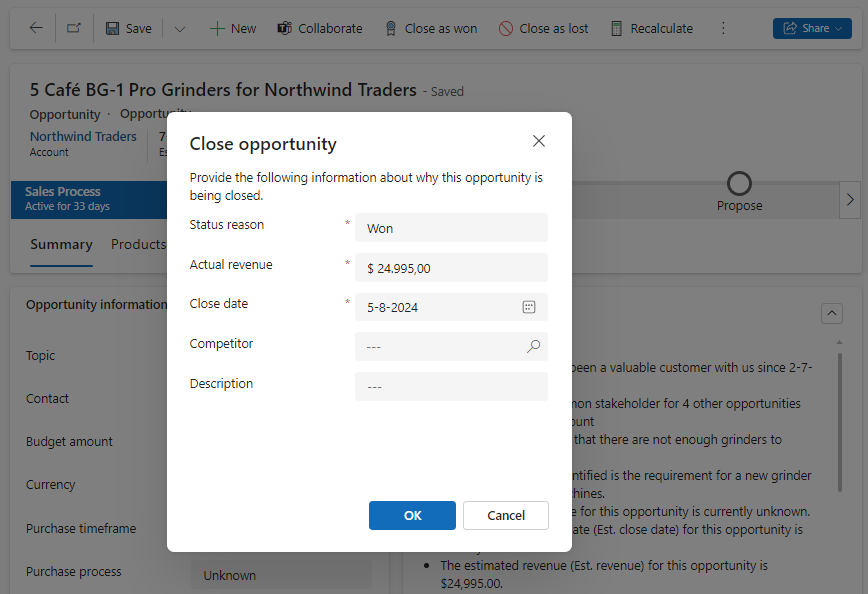
customize the opportunity close form

You can tailor this experience and customize the opportunity close form to match this with the requirements of your process. In our scenario, since most users do not have delete access to tables, I would like to come up with a way that you can close opportunities that are duplicates and you want to somehow link them to the record where they are duplicates off so it is not messing up the reporting. I have introduced the following components for my scenario:

  • a new Close as Lost status called: Duplicate. Good to remember, that when you go for the customized experience you need to add the status to the Status Reason (opportunitystatuscode) on the Opportunity Close table
  • introduced a new field on the Opportunity Close table called: Duplicate Opp Number
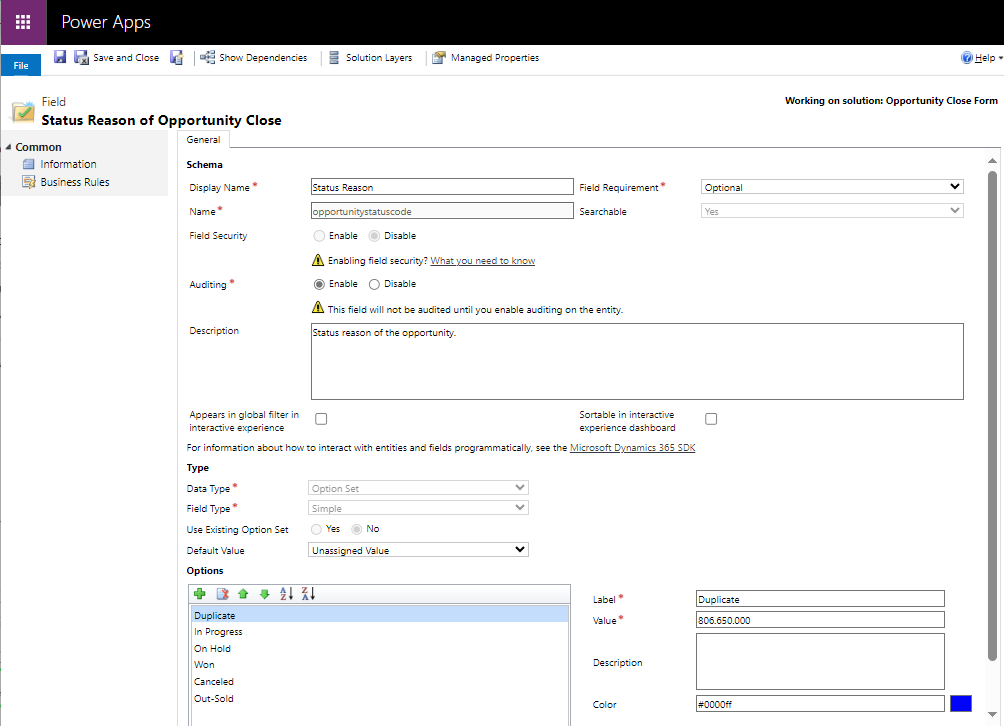
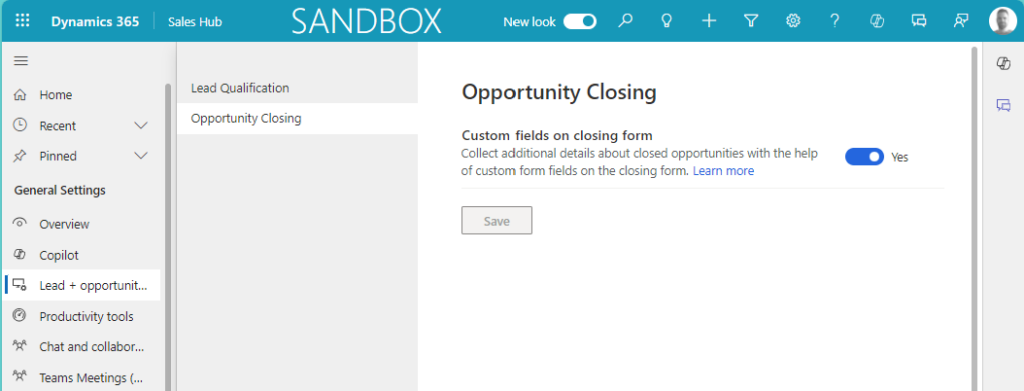
The first step in the configuration of this functionality is to enable the setting for this. You can do this by following the next steps:

  • Open the Sales Hub App
  • Change the area to App Settings
  • Select Lead + Opportunity Management in the General Settings
  • Select Opportunity Closing
  • Set Custom fields on closing form to Yes
The last step that is making this process a lot more streamlined and that would be to introduce a new business rule. This will check if the selected status is Duplicate and then fields will be locked/unlocked and mandatory/not mandatory like below.
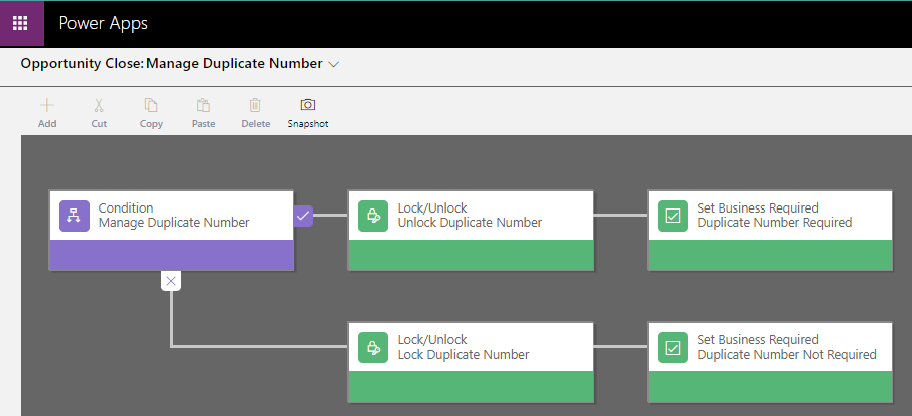
Once this is set up, the new experience will be as follows when you close your opportunity as Lost. The user will now need to provide the Duplicate Opp Number in order to close the opportunity. As you can see, customize the opportunity close form is a powerful feature which allows you to streamline you process.

Sales Customize ExperienceOpportunity Close form

Post navigation

Previous post
Next post

Related Posts

Field Services Personal Notification Hub

Stay Connected and Informed: Manage Your Notification Preferences

Posted on May 22, 2024May 22, 2024

Stay Connected and Informed, How can you achieve this? “Can I get an email notification when I get a lead?” or “How about if I get an alert when that Work Order is assigned to me”? These are only a few of the questions that I get a lot in…

Read More
Sales lead duplicate detection feature

Improve your lead data using the enhanced lead duplicate detection feature

Posted on January 28, 2026January 28, 2026

Data quality is probably one of the biggest issues that companies are struggling with. The enhanced lead duplicate detection feature is something you should definitely look into in order to get better data quality. Most people are familiar with the traditional duplication rule that you can set up as an…

Read More
AI Builder AI Builder language models

Leverage AI Builder language models to collaborate more easily

Posted on October 2, 2024October 2, 2024

Within the AI Builder, there is a whole range of prebuilt models that you can use within for example the Power Platform. In this blog post, I would like to focus on two AI Builder language models that are prebuilt and available to you: Use case: Padel Vamos goes internationally…

Read More

Comment

  1. Simone Zink says:
    August 27, 2024 at 10:36 am

    Hey there Jeroen, thanks for your post on this! I tried the new lead qualification in preview just today (Germany). It seems fine, except that the wrong form comes up when I click to edit the opportunity or want add additional opportunities in the process via new right hand pane. I always get the default main form 😢. Which of course is not useful with e.g. Company as a mandatory field. Do you know how to configure the appropriate form defined in the settings for this process to show up? Or is this feature still buggy? All the best to the beach, Simone

    Reply

Leave a Reply Cancel reply

Your email address will not be published. Required fields are marked *

ABOUT ME

  • LinkedIn
  • Mail
  • GitHub
  • YouTube
"BizApps and PowerPlatform dude with a passion for AI, sitting relaxt in his black shirt on a bounty white beach with palm trees, a azure blue ocean in the background and enjoying a good coffee "

~GenAI - DALL.E 3 and GPT 3.5

Subscribe

Please wait...

Thank you for subscribing!

Search

Categories

  • Agents
  • AI Builder
  • AI Prompting
  • Artificial Intelligence
  • Copilot
  • Copilot Studio
  • Customer Insights
  • Customer Service
  • Dataverse
  • Field Services
  • Generative AI
  • Model-driven Apps
  • Personal Development
  • Power Apps
  • Power Automate
  • Power BI
  • Power Platform
  • Reporting
  • Sales
  • SharePoint

Archive

  • June 2026
  • May 2026
  • March 2026
  • February 2026
  • January 2026
  • December 2025
  • November 2025
  • October 2025
  • August 2025
  • July 2025
  • June 2025
  • May 2025
  • April 2025
  • March 2025
  • February 2025
  • January 2025
  • December 2024
  • November 2024
  • October 2024
  • September 2024
  • August 2024
  • July 2024
  • June 2024
  • May 2024
© 2024 - All rights reserved | Jeroen Scheper | Privacy Policy