
Skip to content
JScheper.com
JScheper.com

BizApps, Powerplatform and AI

  • Home
  • Blog
  • Contact
JScheper.com

BizApps, Powerplatform and AI

AI suggestions for formula columns

Use AI suggestions for formula columns

Posted on August 14, 2024August 13, 2024 By Jeroen Scheper

Do you struggle sometimes when introducing formula columns (fx Formula) on how to design/configure these? Now it is possible to use AI suggestions for formula columns to speed up the process and create your formulas quickly.

I will explain the AI suggestions for formula columns by using the following use case: on the Opportunity record there is a standard field for probability that can contain a value between 0 and 100. Since there is room for interpretation here of what that means, I would like to introduce a new column called Opportunity Chance which will have the logic in the table below to determine the value.

Probability RangeOpportunity Chance
0 – 40Unlikely
41 – 74Likely
75 – 100Very Likely

Enable AI suggestions for formula columns

This feature is still in preview, so that is something to consider when enabling this feature. In order to enable this you need to do the following:

  • Open Power Platform Admin Center
  • Select the Environment where you want to enable this for
  • Select Settings > Products > Features
  • Find the AI suggestions for formula columns setting and switch this On
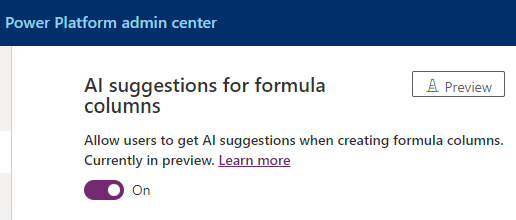
AI suggestions for formula columns

Using fx Formulas to determine Opportunity Chance

The following steps I have taken to complete the requirements for my use case:

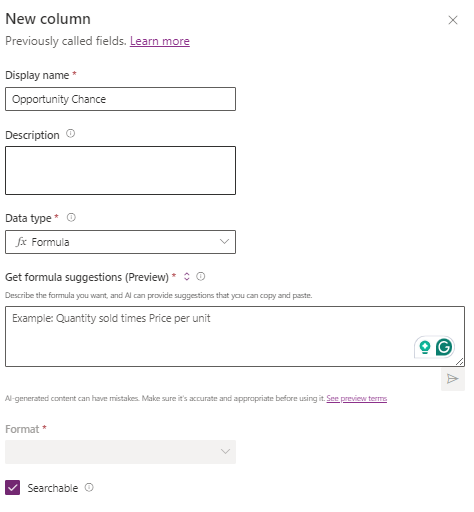
  • Open the Opportunity table and select > New Column
  • Entered the Display name: Opportunity Chance
  • For the Data type I select: fx Formula
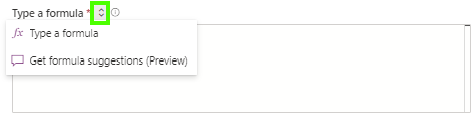
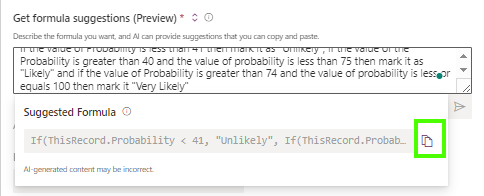
  • To get the formula suggestions, select the arrows and choose Get formula suggestions (Preview)
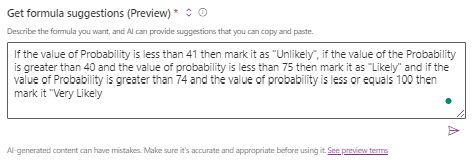
  • I have entered the following prompt and I must honestly admit that it did take me a couple of attempts to get to this:

If the value of Probability is less than 41 then mark it as “Unlikely”, if the value of the Probability is greater than 40 and the value of probability is less than 75 then mark it as “Likely” and if the value of Probability is greater than 74 and the value of probability is less or equals 100 then mark it “Very Likely”
Reasons why this can be a bit challenging in the beginning:

  1. “Know your prompts”, what I mean by this is, that you do know how to make for example comparisons like greater than, less than, etc.
  2. Check/set values, what I mean by this is, how would you classify the “outcome” and should you use comma’s yes or no?
  • The AI suggestions for the formula will be shown and you have the option to Copy the script
  • When you navigate back by clicking the arrows again next to Get formula suggestions (Preview) and change this to Type a formula you can now paste the code generated by AI.
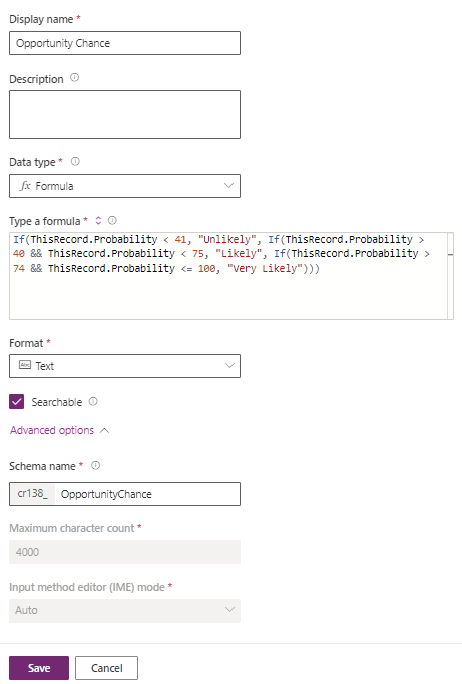
  • Another limitation at the moment is that the fx Formula does not support choice type. So in our use case, I have selected Text as the Format of the field.
  • Select Save and the column is created.

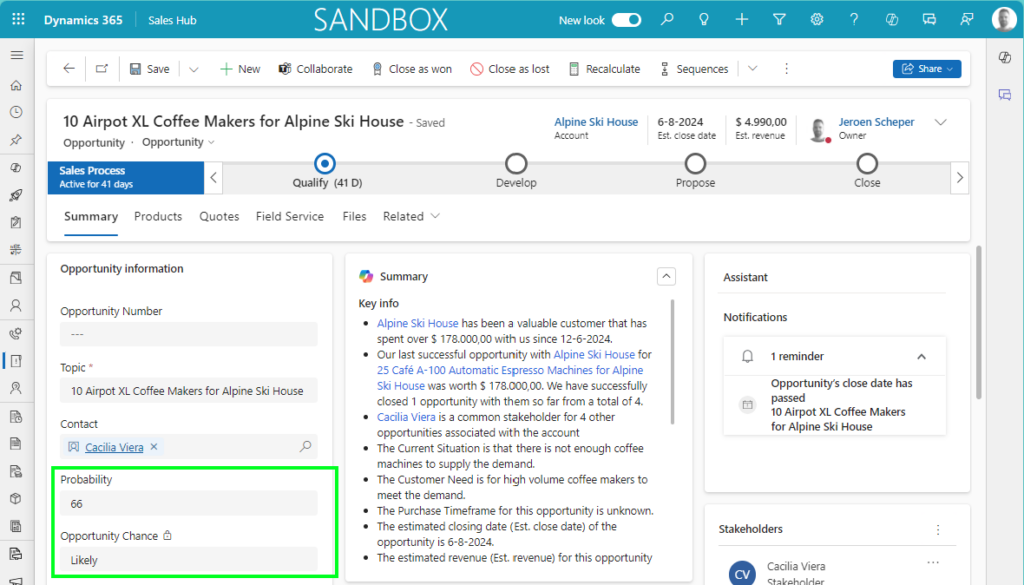
I have added the Probability and Opportunity Chance column to the form to test the functionality. When changing the probability, the opportunity chance field will now update accordingly

AI Prompting Generative AI Power Platform Sales AI suggestionsfx formula

Post navigation

Previous post
Next post

Related Posts

Model-driven Apps hide system views

Hide system views to tailor your user experience

Posted on September 11, 2024September 6, 2024

Do you find it difficult to find the system views in the long lists of views available for certain tables? Yes, you were able to set a default of course, but now you do have the option to hide system views when enabling this feature. When looking at the Opportunity…

Read More
Reporting download your uploaded document templates

Download your uploaded document templates now!

Posted on April 15, 2025April 15, 2025

This is another post in the category, “this button was not there the last time I checked it“. Last week, I already wrote about being able to apply security roles on document templates (link to post). From that same discovery, I also found out that you can now download your…

Read More
Sales multi-table visual hierarchy

Cockpit view with the multi-table visual hierarchy

Posted on January 19, 2026January 19, 2026

A while back, I posted about the new visual hierarchy that became available (link here). This feature is now extended, which allows you to create your own multi-table visual hierarchy 😍. Personally speaking, I love this feature since it is a great and organized visual representation of the data. In…

Read More

Leave a Reply Cancel reply

Your email address will not be published. Required fields are marked *

ABOUT ME

  • LinkedIn
  • Mail
  • GitHub
  • YouTube
"BizApps and PowerPlatform dude with a passion for AI, sitting relaxt in his black shirt on a bounty white beach with palm trees, a azure blue ocean in the background and enjoying a good coffee "

~GenAI - DALL.E 3 and GPT 3.5

Subscribe

Please wait...

Thank you for subscribing!

Search

Categories

  • Agents
  • AI Builder
  • AI Prompting
  • Artificial Intelligence
  • Copilot
  • Copilot Studio
  • Customer Insights
  • Customer Service
  • Dataverse
  • Field Services
  • Generative AI
  • Model-driven Apps
  • Personal Development
  • Power Apps
  • Power Automate
  • Power BI
  • Power Platform
  • Reporting
  • Sales
  • SharePoint

Archive

  • March 2026
  • February 2026
  • January 2026
  • December 2025
  • November 2025
  • October 2025
  • August 2025
  • July 2025
  • June 2025
  • May 2025
  • April 2025
  • March 2025
  • February 2025
  • January 2025
  • December 2024
  • November 2024
  • October 2024
  • September 2024
  • August 2024
  • July 2024
  • June 2024
  • May 2024
© 2024 - All rights reserved | Jeroen Scheper | Privacy Policy