Skip to content
JScheper.com
JScheper.com

BizApps, Powerplatform and AI

  • Home
  • Blog
  • Contact
JScheper.com

BizApps, Powerplatform and AI

the form fill assist toolbar

Copilot’s new form fill assist toolbar including the support of files

Posted on May 8, 2025May 8, 2025 By Jeroen Scheper

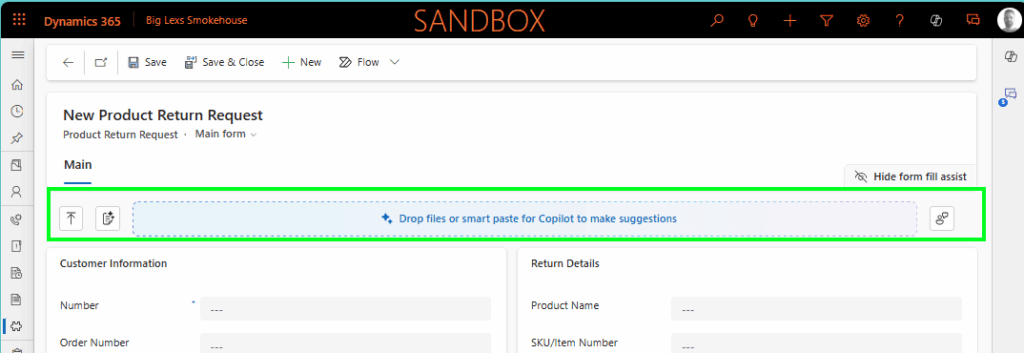
Still in preview, but looks very promising, the form fill assist toolbar, which also allows you to use files now. This is an extension of something that I wrote about before a while back, when the Copilot smart paste feature was introduced (blog here). At this stage, the new toolbar allows you to upload files and, based on that, it can provide suggestions for fields in the form you are working on.

The cool thing about this is that it supports the following file types at the moment:

  • .txt
  • .docx
  • .csv
  • .pdf
  • .png
  • .jpg
  • .jpeg
  • .bmp

Use case Product Return Request

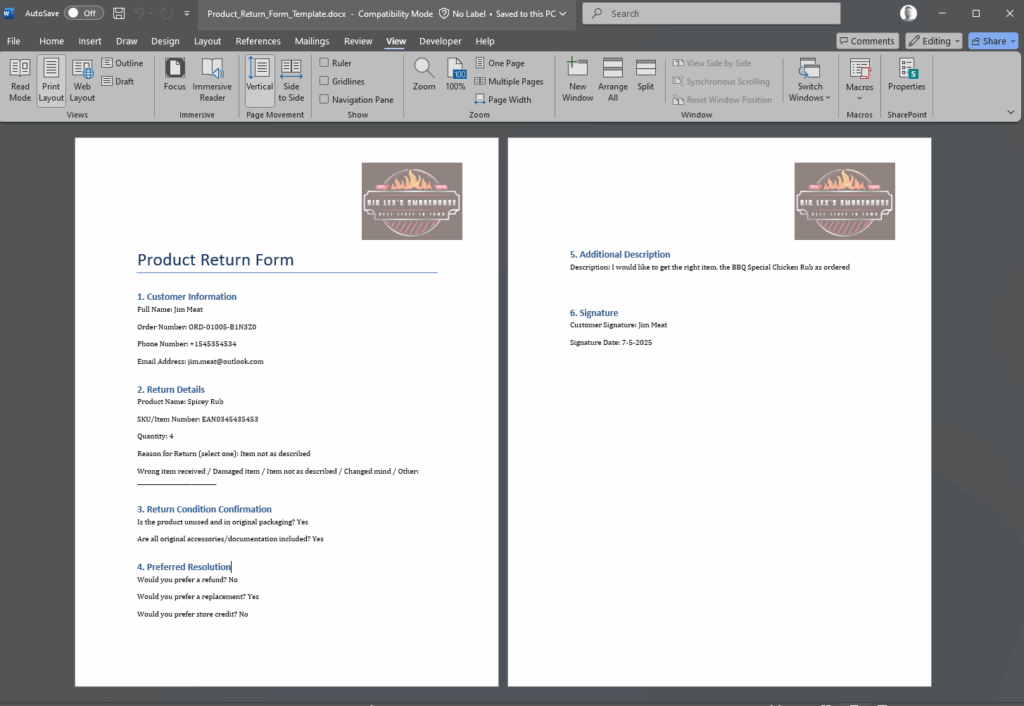
There are plenty of interesting use cases for this. I have decided to create something for Big Lex’s BBQ Smokehouse, where they are allowing customers to download a template from their website in order to request a product return. This template should be filled in by the customer and send back to the backoffice of Big Lex’s BBQ Smokehouse.
But you can also think about other types of documents that could be used to speed up this process a lot more, for example:

  • Health and Safety Checklist
  • Customer Satisfaction Survey
  • Client Onboarding Checklist

The way it works is then pretty simple:

1. Navigate to the table where you want to create a record for, in my example Product Return Request

2. Upload your file or use the drag-and-drop feature into the box, in my example, a filled-in Product Return Request form as shown in the image above
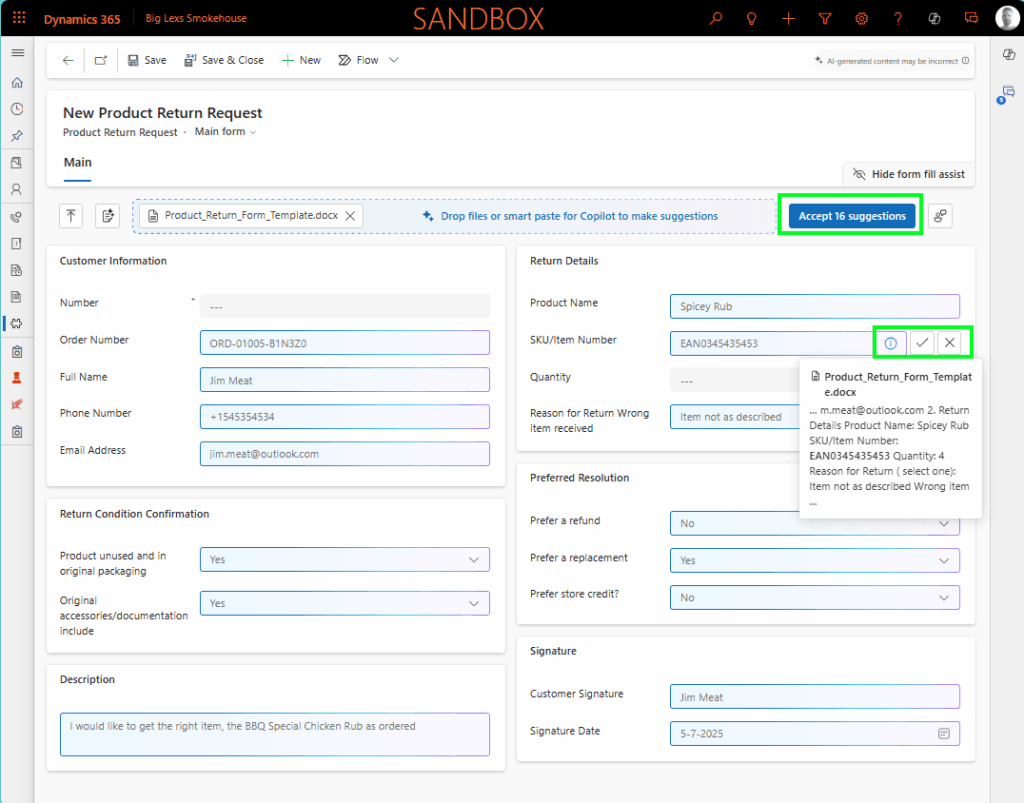
3. Copilot will process your file and try to provide suggestions for the different fields, where possible

4. Accept All suggestions, or make a decision field by field. When you hover over the i icon it will show you where in the template it gets its information from.
How to configure the Copilot form fill assist toolbar

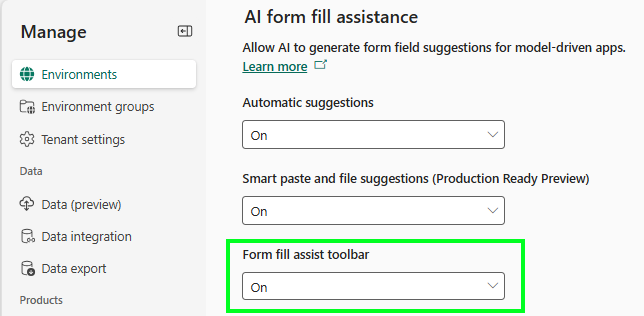
In order to enable the form fill assist toolbar feature, you need to follow the next steps:

  • Open the Power Platform Admin Center
  • Navigate to Environments
  • Select the environment where you want to enable this for
  • Select Settings
  • Navigate to Features in the Products section
  • Find the AI form fill assistance section
  • Enable Form fill assist toolbar
  • Press Save

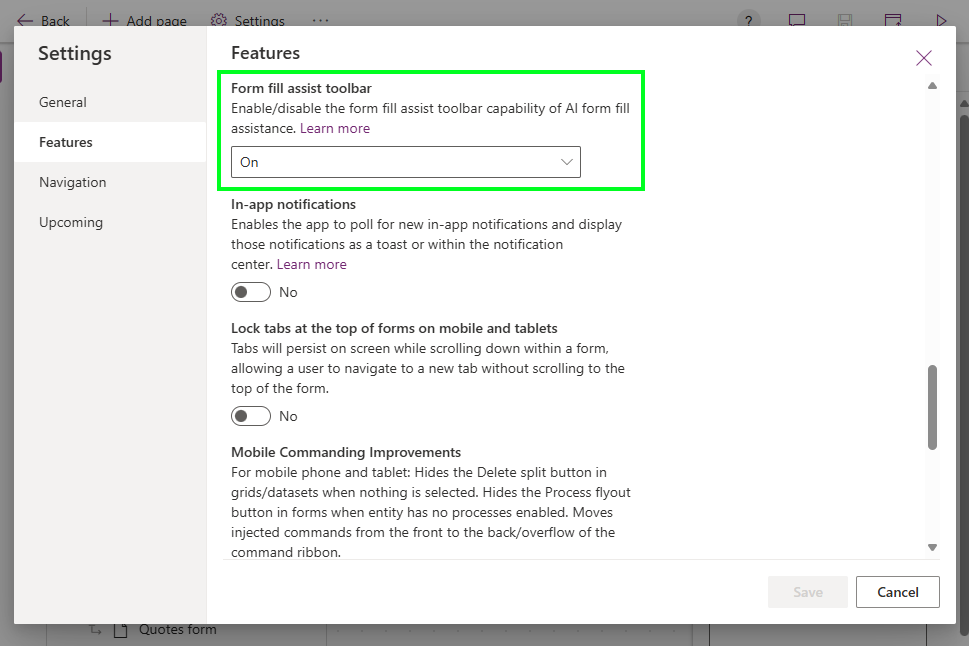
The form fill assist toolbar setting can be overridden on the model-driven app level if you want to manage this feature by model-driven app. When you open the model-driven app and navigate to the Settings > Features you can find the Form fill assist toolbar setting here to override it.

Copilot Customer Insights Customer Service Field Services Power Platform Sales Artificial IntelligenceForm fillSmart Pastetoolbar

Post navigation

Previous post
Next post

Related Posts

Model-driven Apps hide system views

Hide system views to tailor your user experience

Posted on September 11, 2024September 6, 2024

Do you find it difficult to find the system views in the long lists of views available for certain tables? Yes, you were able to set a default of course, but now you do have the option to hide system views when enabling this feature. When looking at the Opportunity…

Read More
AI Builder AI Builder language models

Leverage AI Builder language models to collaborate more easily

Posted on October 2, 2024October 2, 2024

Within the AI Builder, there is a whole range of prebuilt models that you can use within for example the Power Platform. In this blog post, I would like to focus on two AI Builder language models that are prebuilt and available to you: Use case: Padel Vamos goes internationally…

Read More
Copilot Copilot to visualize data in views

Using Copilot to visualize data in views

Posted on March 5, 2025February 25, 2025

Another promising preview feature that has been released recently, now you can use Copilot to visualize data in views 😍. Based on the data and columns in your views, Copilot can now generate charts for you. These charts are, same as in the traditional charts, interactive which therefore allows you…

Read More

Comment

  1. Pingback: Permanently Remove The Form Fill Toolbar From Customer Insights Journeys - 365 Community Online

Leave a Reply Cancel reply

Your email address will not be published. Required fields are marked *

ABOUT ME

  • LinkedIn
  • Mail
  • GitHub
  • YouTube
"BizApps and PowerPlatform dude with a passion for AI, sitting relaxt in his black shirt on a bounty white beach with palm trees, a azure blue ocean in the background and enjoying a good coffee "

~GenAI - DALL.E 3 and GPT 3.5

Subscribe

Please wait...

Thank you for subscribing!

Search

Categories

  • Agents
  • AI Builder
  • AI Prompting
  • Artificial Intelligence
  • Copilot
  • Copilot Studio
  • Customer Insights
  • Customer Service
  • Dataverse
  • Field Services
  • Generative AI
  • Model-driven Apps
  • Personal Development
  • Power Apps
  • Power Automate
  • Power BI
  • Power Platform
  • Reporting
  • Sales
  • SharePoint

Archive

  • March 2026
  • February 2026
  • January 2026
  • December 2025
  • November 2025
  • October 2025
  • August 2025
  • July 2025
  • June 2025
  • May 2025
  • April 2025
  • March 2025
  • February 2025
  • January 2025
  • December 2024
  • November 2024
  • October 2024
  • September 2024
  • August 2024
  • July 2024
  • June 2024
  • May 2024
© 2024 - All rights reserved | Jeroen Scheper | Privacy Policy