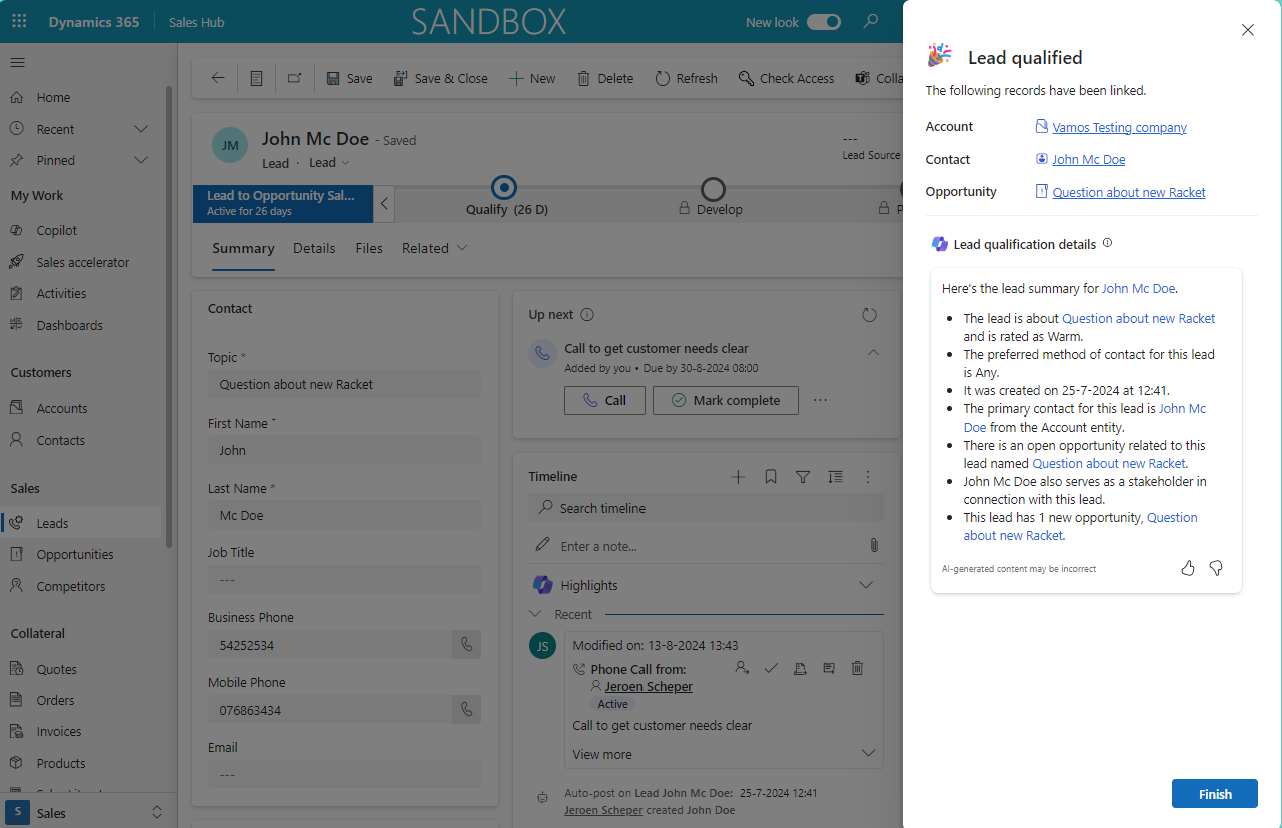
One of my favorite new features that is introduced in the Wave 2 2024 release, is the new customized lead qualification experience. This functionality did not change that much over time but now you do have better options to make this process a lot smoother and tailored to your needs.
A couple of weeks ago I posted about the option to customize the opportunity closure process (blog). In the past you had a similar option where you could decide to overrule the standard dialog and go for the custom experience which was also a form on the side bar.
The big benefits of this new customized lead qualification experience according to me are:
- As an admin you can configure this experience now a lot more and decide per record type if the record should be created automatically by the system or by the Seller (user)
- The ability to create up to 5 opportunities straight from the lead
- Being able to set additional information on the new opportunity
- As an admin you can customize the opportunity form that is opened as a dialog when editing opportunities
- Use Copilot to create a summary of the key information.
Configuration of new customized lead qualification experience
In order to enable the new lead qualification experience navigate to:
- Open the Sales Hub App
- Change the area to App Settings
- Select Lead + Opportunity from the menu and select Lead qualificiation
- Enable the try the new qualification experience at the top
You can now decide how you want to configure this new experience. In the example below I have decided that the Opportunity record is up to the Seller to create. I have enabled to ability to create up to 5 opprotunities from the lead and finally I also would like to have Copilot to create a summary for me.

New experience
When you now open a lead and select Qualify from the ribbon you will see the new form on the side. You will see that Account and Contact is locked as we did setup and you do have the option now to edit the opportunity that you will create or add new opportunities to you lead.

When editing the opportunity, a new dialog opens in the center, and now you can set a few more fields. Also this experience can be tailored by an administrator of the system which I think is perfect!

Once you are done making changes and adding opportunities you can select Qualify at the bottom. You will now get the final screen with a confirmation that the lead is qualified but also the summary generated by Copilot and now you can select Finish.

Disqualify?
The documentation from Microsoft does not say anything about the disqualification process. I know there is a lot of focus on the “happy path” of this process, which totally makes sense. I am just wondering if it would not be an idea to enhance the disqualification process as well. Potentially also offer a summary by Copilot on why we did not win. Did we ever win something for that contact? Schedule a follow-up? Add to a campaign perhaps or link to a competitor.



Hey there Jeroen, thanks for your post on this! I tried the new lead qualification in preview just today (Germany). It seems fine, except that the wrong form comes up when I click to edit the opportunity or want add additional opportunities in the process via new right hand pane. I always get the default main form 😢. Which of course is not useful with e.g. Company as a mandatory field. Do you know how to configure the appropriate form defined in the settings for this process to show up? Or is this feature still buggy? All the best to the beach, Simone
Hi Simone,
thank you for visiting my blog and your reply!
I believe at this stage you can’t select a form which means you need to customize the form that is linked.
It is a bit funny that this form, even though it is about Lead Qualification, is on the Opportunity entity.
This is a “Main” form called “Opportunity qualify lead form”
Hope this helps a bit.
Enjoy your day!
Jeroen
Thanks a bunch, Jeroen! Rookie mistake, the form was not included in the app 🙈. Now I get the correct form in the process. But if I edit the opportunity to be created during the lead qualification process or try to add additional once via that form, it does not save my entries. There is a short processing display after I clicked on Save and Close in the form, but the Form does not close and if I leave via the x, also nothing is saved. Does it work for you?
Have a great day! Simone