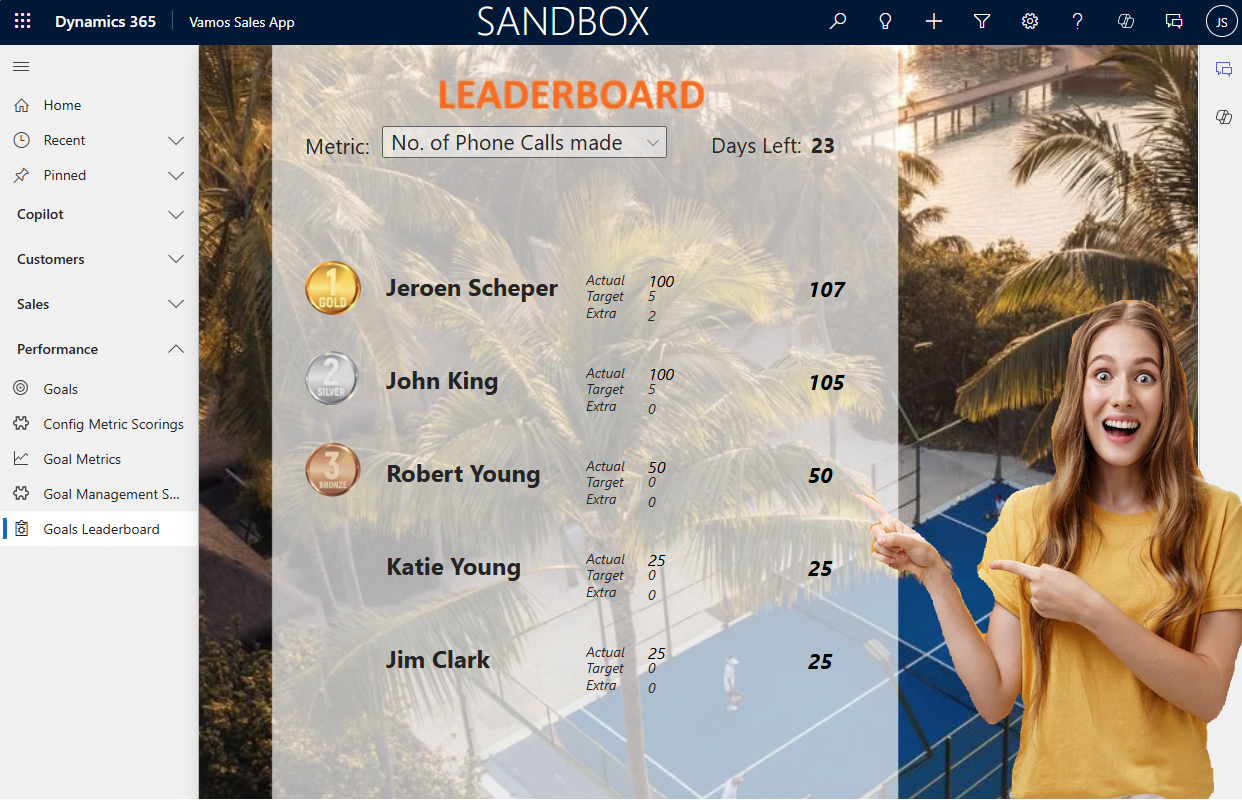
Making sales fun again and driving adoption, that was, in essence, what the gamification module was all about. Some of you can perhaps still remember the classic gamification module. Now it is time to configure your own gamification via some simple customizations. In this blog, I would like to demonstrate the first version to configure your own custom gamification module.

Some of you might remember the classic Gamification module from Microsoft, as you can see in the screenshot below. If I remember correctly, this was deprecated somewhere in 2021. In essence, the core components of this module were:
- Game options, either individual or in teams, and a theme
- Initialize KPIs and Scorings
- Define user roles, either players or fans
- Set the Awards and Prices

What is needed to configure your own gamification?
The gamification that I have configured will be on top of the goal management module within Dynamics 365. A couple of weeks back, I explained and demonstrated the basics of this feature in this blog post. In order to configure your own gamification, you need the following:
- Understanding of Goal Management
- Scoring methodology
- Power Automate Flow to calculate daily (or more frequent) scoring updates
- Leaderboard, in our example, is a Custom page embedded within a model-driven app
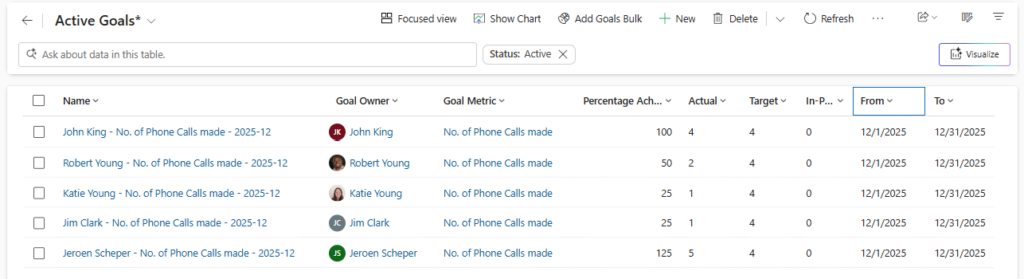
The process of goal management is explained in my earlier post. In essence, this will be our way to set goals each month and track progress against them for different metrics. Below you will see the goals for December for the metric No. of Phone Calls made.
Scoring methodology
For my proof of concept version of gamification, I am focusing on the metric type Count. The other option would be to do this on Revenue, which, for now, I have not included, but could be a great enhancement for the next version.
Since you can’t extend the Goal Metric table, this would have been the ideal spot in my scenario. I have created a new table called Config Metric Scorings.
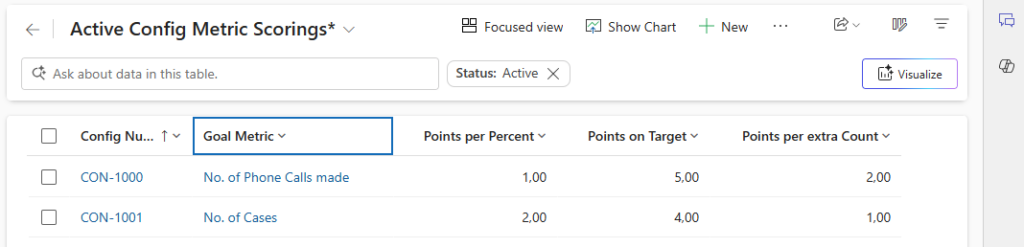
This table allows you to define the following scoring per Goal Metric:
- Points for each percent completed for that metric
- One-time point bonus if you meet the Goal Target
- Points Extra for each extra count above your Goal Target.
Calculate daily scoring
The next step in order to configure your own gamification would be to have a Power Automate Flow in place that calculates, perhaps daily or for a different frequency, the scoring of the leaderboard.
A new table is created called Goal Management Score Daily to store the calculated daily scoring. In essence, the purpose of this table is:
- storing the references to Metric, Owner, and Source Goal
- the Goal Target, Goal Actual, and Percent of Goal Target
- Date Score represents for each day
- Metric configuration points for this metric
- Points for the value:
- Percent completed
- Meeting target
- Extra above count
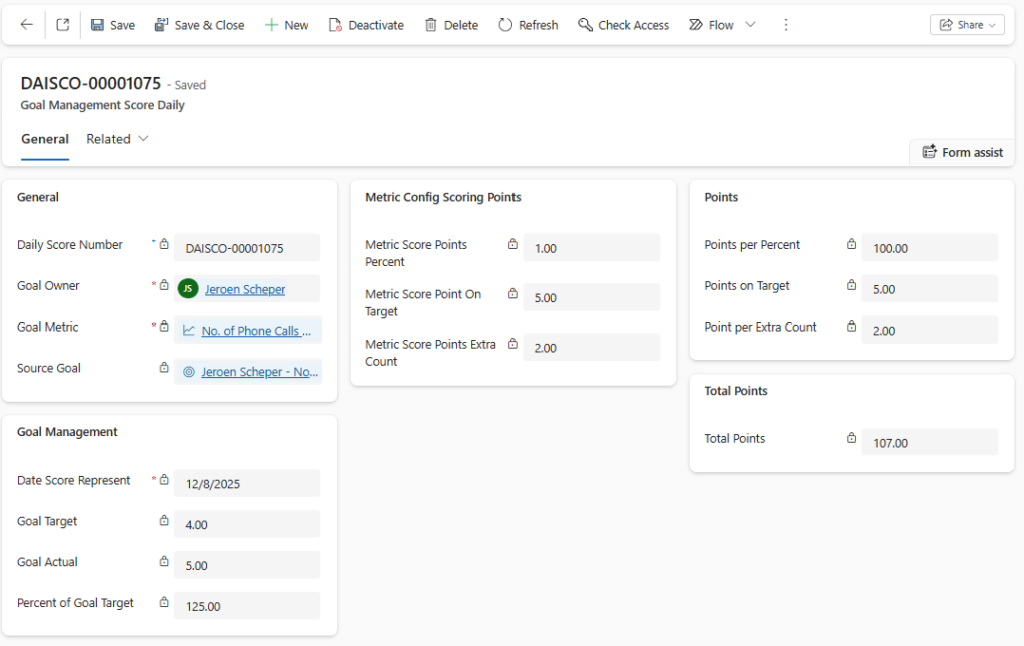
This also gives an audit of the scoring, and theoretically, you should also be able to show trends based on this (historical) data.
For the point values, I have used Power FX columns:
Points per percent (decimal)
If(
     'Percent of Goal Target' < 100,
     'Percent of Goal Target' * 'Metric Score Points Percent',
     100 * 'Metric Score Points Percent'
)
Points on target (decimal)
If(
     'Percent of Goal Target' >= 100,
     'Metric Score Point On Target',
     0
)
Points per Extra Count (decimal)
If(
    'Goal Actual' > 'Goal Target',
    ('Goal Actual' - 'Goal Target') * 'Metric Score Points Extra Count',
    0
)
Total Points (decimal)
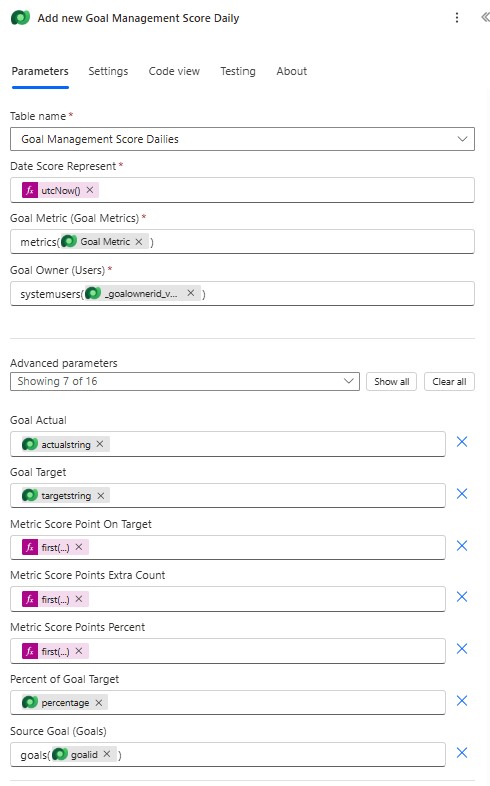
'Points on Target' + 'Points per Percent' + 'Point per Extra Count'You need a Power Automate Flow in order to create the data above. Below is a screenshot of the Power Automate Flow, and below the image, you can find the steps explained.
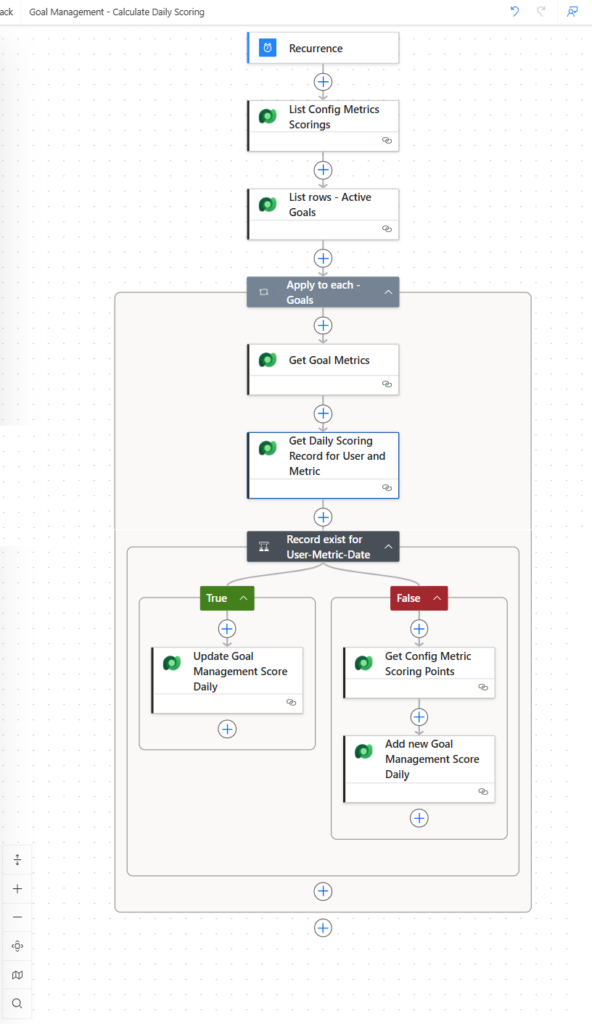
List Config Metrics Scoring; I am getting all the Goal Scoring metrics records
List Rows – Active Goals; Received all Active Goals
Apply to Each – Goals; iterating over all Active Goals from the previous step
Get Goal Metric; Get Goal Metrics of the goal
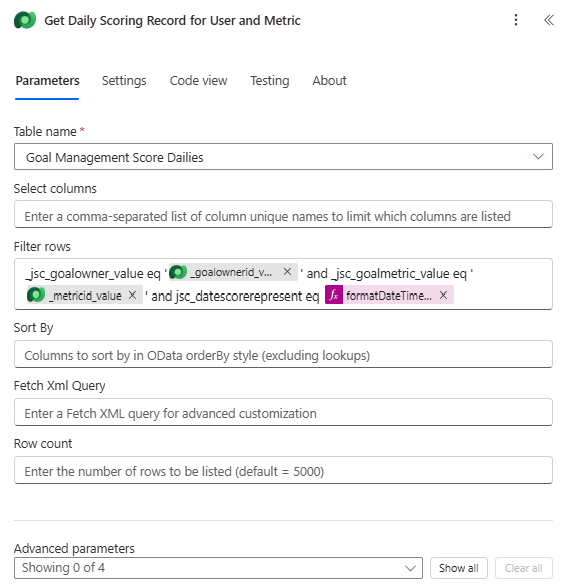
Get Daily Scoring Record for User and Metric; This is where you list all records for Today, per Goal Owner, and Goal Metric. This is to decide if you need to create or update the Goal Management Score Daily record.
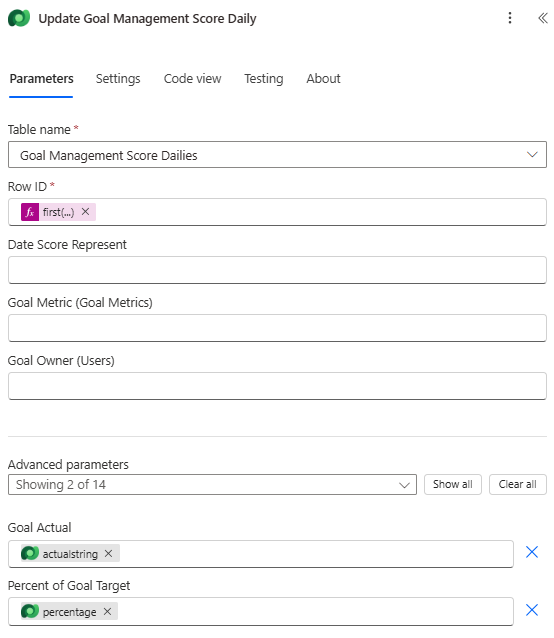
Update Goal Management Daily: Entry for today already exists, and therefore, the in-progress values Goal Actual and Percent will be updated.
Add new Goal Management Score Daily; a new entry is generated with all details needed in order to calculate the new points based on the scoring metrics.