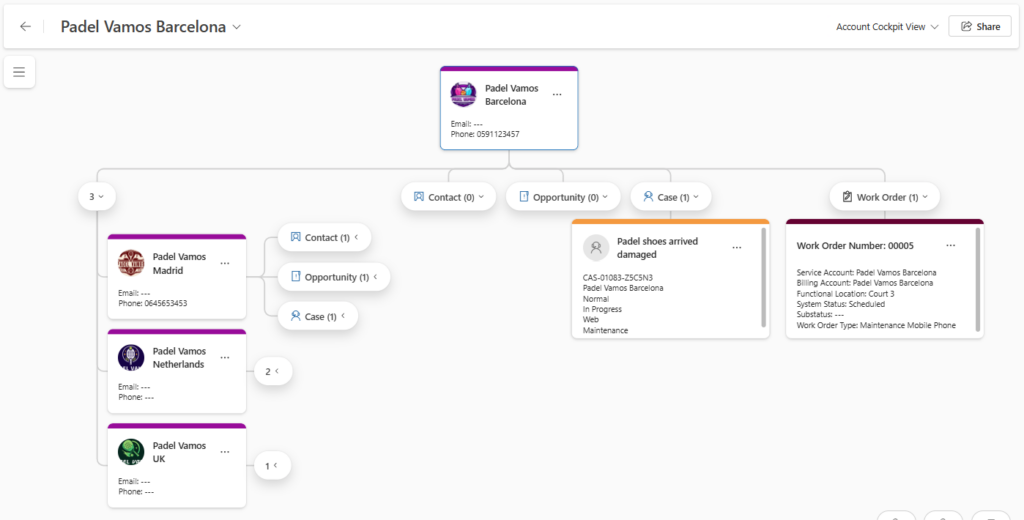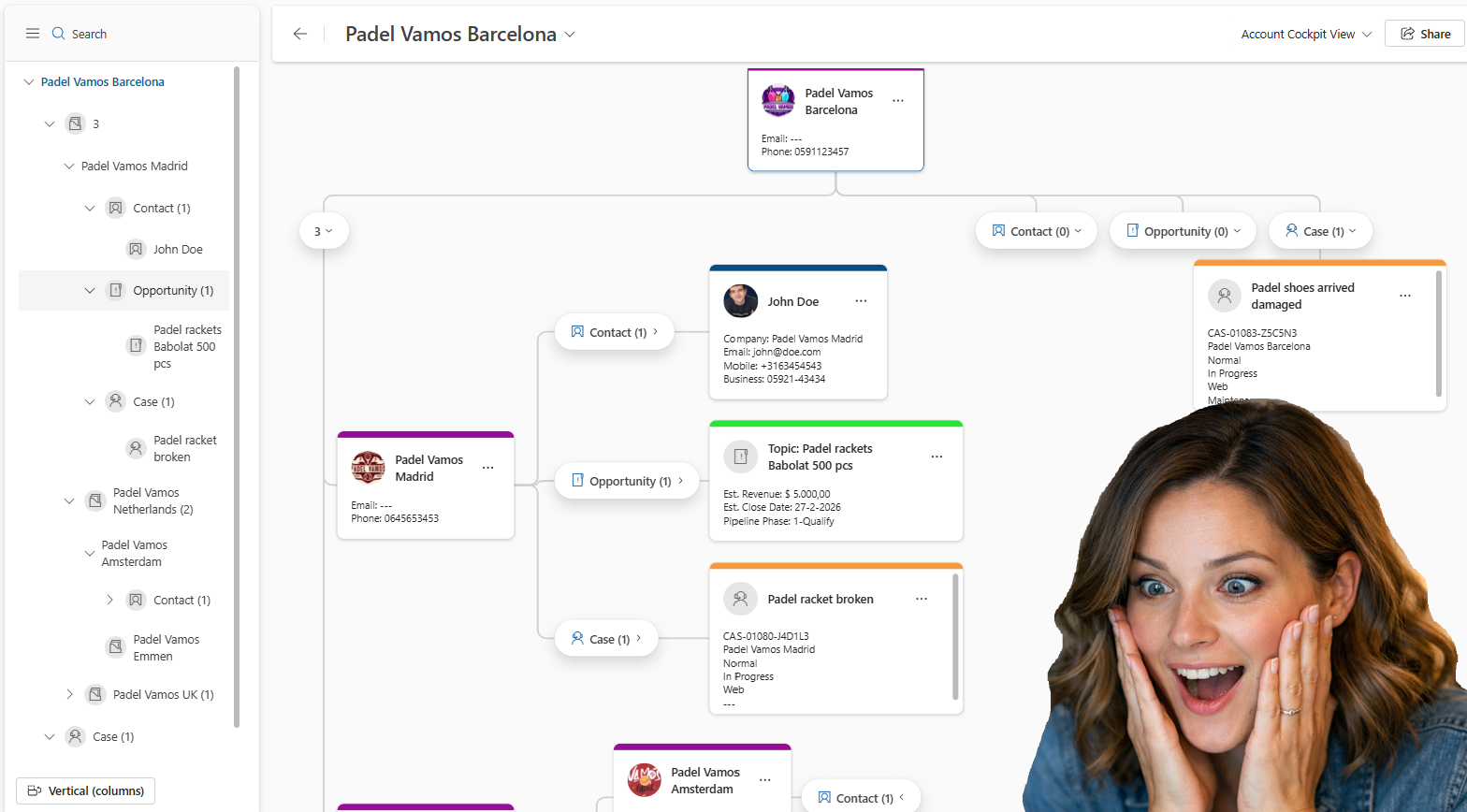
A while back, I posted about the new visual hierarchy that became available (link here). This feature is now extended, which allows you to create your own multi-table visual hierarchy 😍. Personally speaking, I love this feature since it is a great and organized visual representation of the data.

In this post, I will explain the new part of this multi-table visual hierarchy experience, and for the basis of this feature, I do like to refer you to my earlier post.
Configure multi-entity visual hierarchy
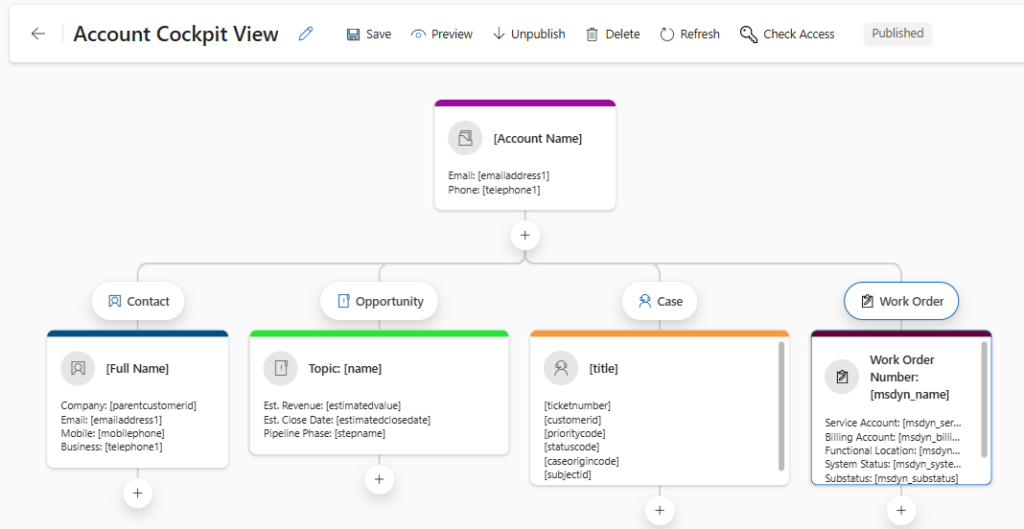
In the example above, I would like to add the Work Order to the cockpit view, but you could also create a hierarchy from scratch, as explained in my earlier post. In order to configure the enhanced multi-table visual hierarchy experience, you can follow the next steps:
- Open the Sales Hub app
- Change the area in the bottom left settings and navigate to App Settings
- Within the General Settings section, select Visual Hierarchy
- Open the Visual Hierarchy, which, in my example, is Account Cockpit View.

- Click on the + icon above the table you would like to add this, this could also be a subtable, as you can see above
- Select the Table, Work Order
- Select Add.
- Configure the table options as explained in my previous post.
- Save the Visual Hierarchy
Now it is ready to test. So when opening an Account and launching the Visual Hierarchy from the ribbon.